Add contacts
On your webshop, it’s not just about your products, but especially about the people who buy them: your customers. In Afosto, we distinguish between two types of customers: contacts and organizations. This guide focuses on contacts.
Contacts are the customers who place an order, both private and business. A business order always includes a contact in addition to an organization. This is the person who places the order on behalf of the organization. Read more about business orders and 'Adding Organizations'.
Within contacts, we also distinguish between two types:
- Guest: These are contacts without login functionality (for example, in B2C webshops). Think of a customer placing an order via an external marketplace or checking out as a guest on your site.
- Non-guest: These are contacts who create an account on your webshop (account area) or are manually added in the Afosto platform. Only non-guest contacts can eventually log in to the account area.
Adding Contacts (Non-guest)
Contacts can be added manually or in bulk within the Afosto platform. Below, we explain step by step how to add contacts.
Manually Adding
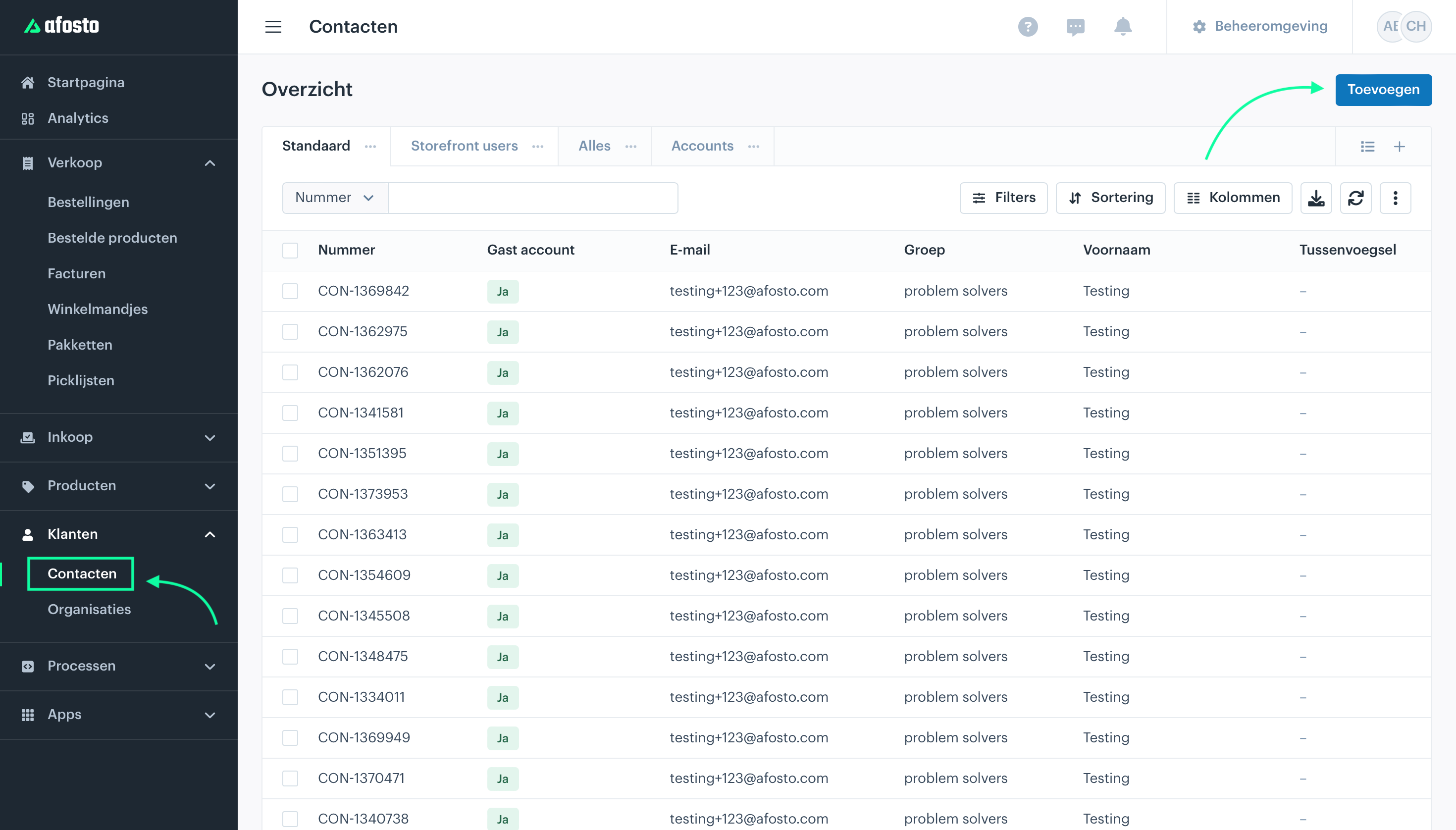
Go to ‘Customers’ in the Afosto platform and select ‘Contacts’ from the dropdown menu. On this page, you will find an overview of all contacts from all your sales channels, both guest and non-guest contacts. Click 'Add' in the top right corner to manually add a new contact.

Provide Information
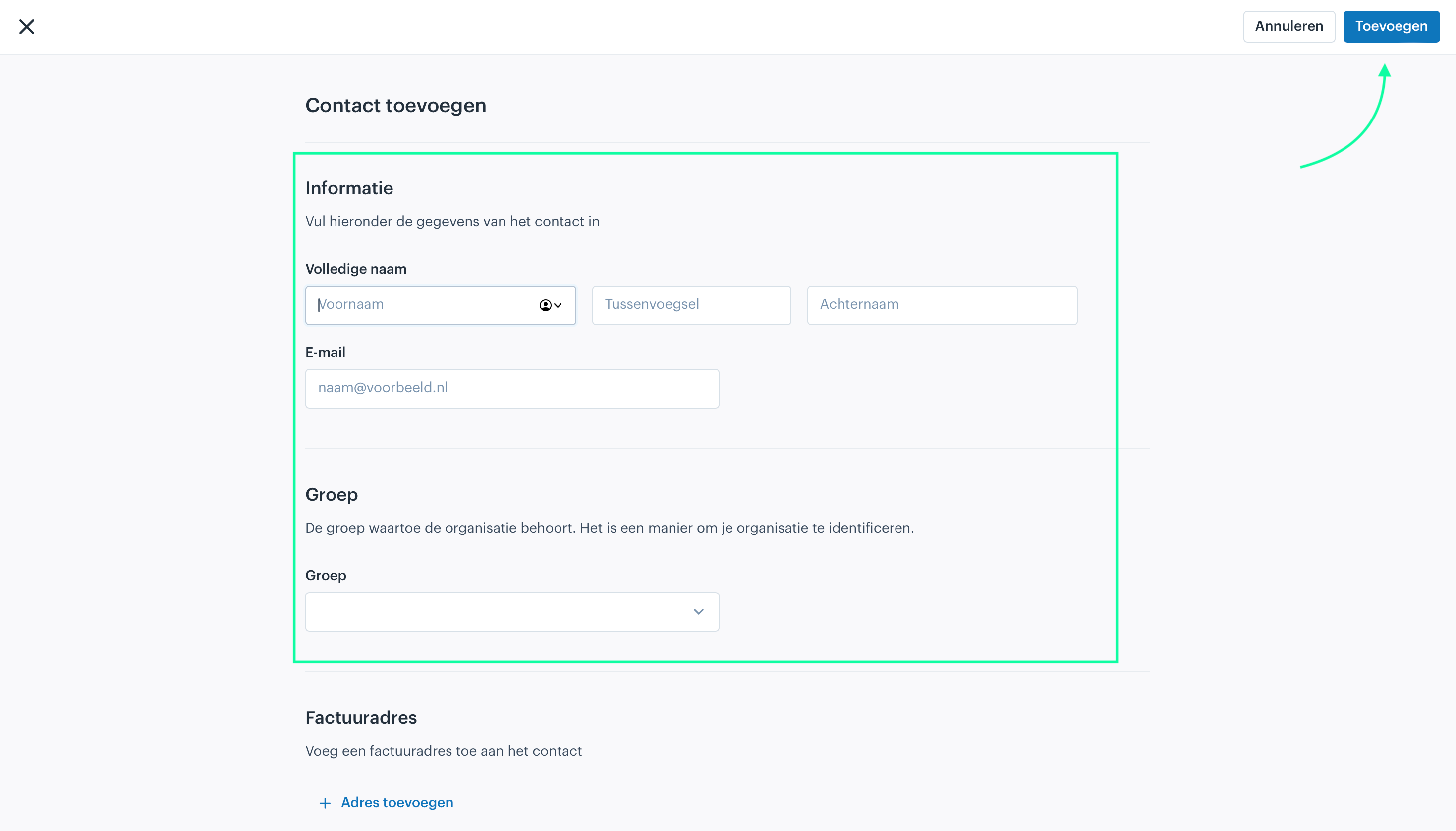
First, enter the full name and email address of the contact (customer). Next, you need to select a group.
Groups help categorize, distinguish, and recognize contacts. They are also used to grant access to the account area of your storefront sales channel. For example, contacts in the group 'Shop A' can only log in to the account area of the storefront sales channel where 'Shop A' is set as the group.
In addition to the general information and the group, you can also provide other details, such as billing addresses, shipping addresses, phone numbers, the organization the contact belongs to, and assign a personal price list to the contact.
Personal Price List
With a personal price list, you can display prices that apply only to this specific customer and are visible only to them. These prices will only be visible after the contact has logged in to your webshop. This is useful, for example, when you have made specific agreements with this customer.
After adding all the information, click ‘Add’ in the top right corner. The contact will be saved and added to the overview. Each contact is automatically assigned a contact number.

Adding in Bulk
If you want to add multiple contacts at once, you can use the bulk action: Import Contacts. Read more about the bulk action and about ‘Contacten importeren'.